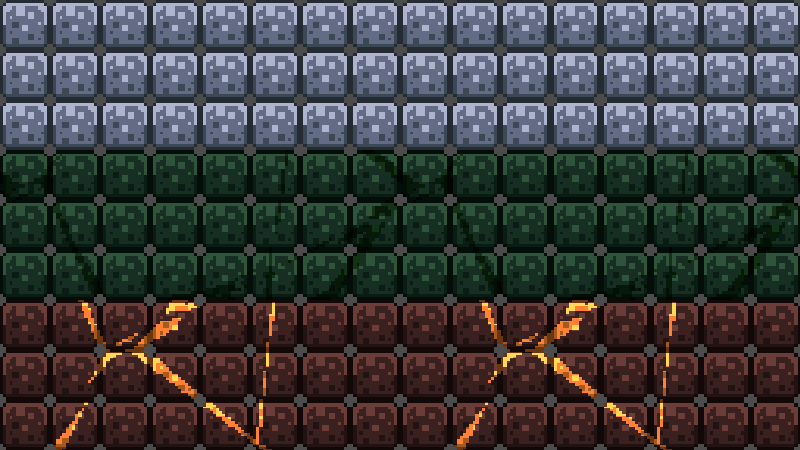
Tilemap – Local Overlay + Color Mix

Allows for overlaying a texture onto a TileMapLayer (and other canvas items) with respect to local coordinates.
Most of the shader instructions for doing an overlay for TileMaps tell you how to create one for world coordinates, which is great for static tiles, but not so much when you need them to move around.
Additionally allows for mixing colors of both the overlay and base tilemap, though this is off by default.
To use:
Set Overlay Texture to a texture of your choosing. This uses nearest-neighbor filtering so you don’t get blurry pixels.
(Optional) If you want to have the TileMap color multiplied with another (such as a situation where you have a grayscale tilemap that you color at runtime) set the Base Color to any other color than white.
(Optional) If you want to have the Overlay color multiplied with another (such as if your overlay texture is grayscale and color can vary) set the Overlay Color to any other color than white.
Set Scale to your desired value, negative numbers will flip your texture. Recommend keeping this to multiples of 2 if you want your texture to tile and not create sub-pixels.
(Optional) Set Offset if you want to have your tile offset by a given coordinate. Useful if you have a very large overlay texture and want to pick and choose where you apply. Recommend keeping this to multiples of 1/2 to avoid sub-pixels.
Credits:
Tileset used in screenshots: Rotting Pixel’s Four Seasons Platformer Tileset
https://rottingpixels.itch.io/four-seasons-platformer-tileset-16x16free
License: CC0 – Attribution is appreciated but not required!
Shader code
shader_type canvas_item;

/**
* The texture you want to overlay onto your tilemap. This uses filter_nearest by default to prevent blurry textures.
**/
uniform sampler2D overlay_texture: filter_nearest;
/**

* Optional color overlay for your base texture. The final base sprite will be multiplied with this. Keep as white if you want your original colors.
**/
uniform vec4 base_color: source_color = vec4(1.0);
/**

* Optional color overlay for the overlay texture. The final overlay will be multiplied with this color. Keep white if you want the original colors.
**/
uniform vec4 overlay_color: source_color = vec4(1.0);

/**
* The scale to apply to the texture. Adjust until your texture tiles properly and is the size you want.
* Note: If you want to allow for sub-pixels, you can change this to a float instead.
**/
uniform int scale = 1;

/**
* How much to offset the texture by as a percentage of the image width and height. Useful for either randomizing texture placement or tweaking alignment.
**/
uniform vec2 offset = vec2(0.0, 0.0);

// Store the vertex position during the vertex call so we can use during fragment
varying vec2 vert;


void vertex() {
	// Determine position accounting for scale and offset
	vert = (VERTEX / float(scale) + (vec2(offset)));
}

void fragment() {
	vec2 tiled_position =  fract(vert);

	// Create a texture from the overlay texture with our tiled position as the coordinates, then multiply w/ overlay color and base color
	vec4 overlay = texture(overlay_texture, (tiled_position));;
	overlay *= overlay_color * COLOR;

	// The actual base color
	vec4 combined_color = COLOR * base_color;

	if(overlay.a == 0.0) {
		COLOR = combined_color;
	}
	else {
		COLOR = overlay;
	}


}
Live Preview