Night Vision Screen Shader

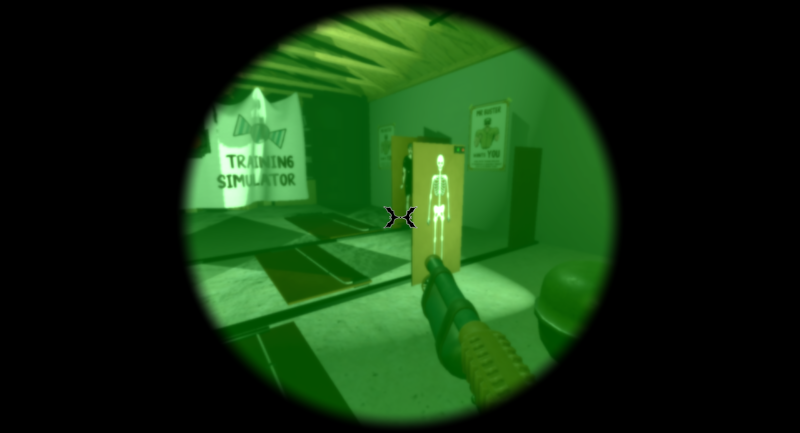
I made a night vision screen shader based on reference images of night vision. Place it on a ColorRect. I included a demo project via Github which includes a simple activate/deactivate animation using tweens for convenience.
I used one circle for my game because that’s how it looks when you look through binoculars/goggles but you can use two if you want to simulate the actual goggles. Default is one but just replace the mixing section with the commented code underneath it to swap to two. I have linked to my itch game where I use it.
Shader explanation::
There are two parts to this shader: the lens mask and the vision.
The lens mask is a simple circle mask. Setting up the lens UV is for scaling and positioning the circle.
If you are using a different aspect ratio make sure you change the following to the correct ratio:uv.x *= 1.706666667;
You can also alter the ratio to warp the circle – commenting it out will change it to an oval for example. make_circle() pos_offset will move the circle from the center of the viewport. The smoothstep includes the lens_edge to make a slight blur on the edge of the lens, blending it with the screen texture a bit.
The vision blurs the screen_tecture to simulate the blurriness of night vision goggles. I also noticed from reference images, brighter objects appeared to glow so the shader calculates the brightness of the pixel and uses that to calculate the glow. This shader uses perceptual luminance weight so it’s closer to how human vision percieves brightness – leave that const unless you want to change that behaviour. The blurred screen texture pixel has glow and vision_vision colour added. Vision colour has to be darker green and will be added over everything equally.uniform bool on = true; is used to aid in animating the lens so you can switch the vision during animation. To hide the lens toggle node visibility or push radius >1.
Shader code
shader_type canvas_item;
render_mode blend_mix;

uniform bool on = true;

uniform vec4 vision_colour: source_color; // I use linear values: 0, 0.08, 0, 1
uniform vec4 glow_colour: source_color; // I use linear values: 0.475, 0.957, 0.439, 1
uniform float blur_amount = 1.5;
uniform float glow_amount = 0.4;   //allows control of glow whilst still using standard perceptual luminance weight

uniform float lens_radius = 0.5;
uniform vec4 lens_colour: source_color = vec4(vec3(0.0), 1);
uniform float lens_edge = 0.05;

uniform sampler2D screen_texture: hint_screen_texture, repeat_disable, filter_linear_mipmap;

// Use Perceptual weight to compare to gauge brightness
const vec3 luminance_weight = vec3(0.299, 0.587, 0.114);

float make_circle(vec2 uv, vec2 pos_offset)
{
	float pos = length(uv + pos_offset);
	float c = smoothstep(lens_radius, lens_radius - lens_edge, pos);
	return c;
}

void fragment() {
	// Setup Lens UV
	vec2 uv = UV - 0.5;
	uv.x *= 1.706666667;    // Account for aspect ratio - change for your aspect

	vec4 final_col;

	if (on)
	{
		// Blur screen image by blur amount
		vec3 col = textureLod(screen_texture, SCREEN_UV, blur_amount).rgb;

		// Calculate brightness
		float brightness = dot(col, luminance_weight);

		// Use brightness to determine glow from glow colour
		vec4 glow = brightness * glow_colour * glow_amount;

		final_col = vec4(vec3(col), 1.0) + glow + vision_colour;
	}
	else
	{
		final_col = texture(screen_texture, SCREEN_UV);
	}

	// MIXING
	float circle = make_circle(uv, vec2(0,0));
	COLOR =  mix(lens_colour, final_col, circle);

	// FOR TWO CIRCLES REPLACE MIXING ABOVE WITH THIS:::
	//float circle = make_circle(uv, vec2(-0.25, 0));
	//float circle2 = make_circle(uv, vec2(0.25, 0));
	//COLOR =  mix(lens_colour, final_col, max(circle, circle2));
}
Live Preview