
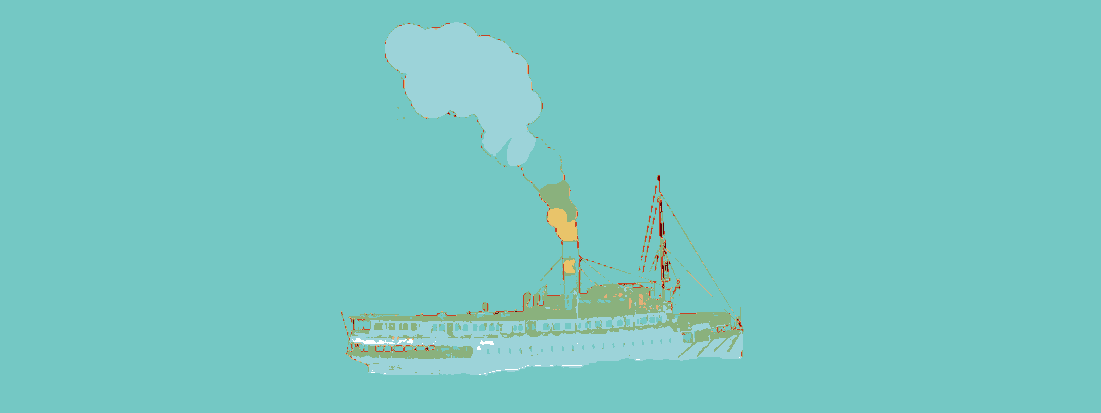
Snap Screen Colors to Palette (Posterize)

This is a screen-space posterize shader that works by assigning each color in view to its nearest analogue from a color palette array (set in shader params). Since this is a canvas item shader, to use it, just create a full-screen ColorRect, assign a ShaderMaterial and this shader and you’re good to go!
This in theory should also be useful for cel-shading by locking colors to the main color, highlight, or shadow color, but in practice if you need that you should adapt it to be spatial and applied only to the proper mesh since each object will need it’s own small cel-shaded palette
—
NOTE: By default the shader can accept up to a 256 color palette. If for some insane reason that’s not enough, open up the shader and change the default size of the array on line 9 from “256” to the new array size. It works fine with palettes smaller than that number of colors, but if there are more it will ignore those after 256. I suspect because the code does not recompile it does not compute the new array size correctly.
—
One interesting detail: by default in Godot, colors are expressed by their RGB components. However RGB is a convenience for computers, but doesn’t reflect how we percieve color very well. Thus, mathematically most similar RGB color to another may not be the most perceptually similar color to another. The bulk of the shader code below pertains to transforming the RGB colors into the Oklab color space before comparing them so that colors will snap to the most perceptually similar color. For that part of the code, I shamelessly stole that from this Github repo.
Shader code
#define FLT_MAX 3.402823466e+38

shader_type canvas_item;
render_mode unshaded;

// Annoyingly, since this is set at compile, it seems you need to manually
// set this array size to match the number of colors in your array. Otherwise
// it will disregard the 'extra' colors
uniform vec4[256] colors : source_color;
uniform sampler2D SCREEN_TEXTURE : hint_screen_texture, filter_linear_mipmap;

const vec3 D65_WHITE = vec3(0.95045592705, 1.0, 1.08905775076);
const vec3 WHITE = D65_WHITE;

// RGB to LAB implementation from
// https://github.com/sv3/gift/blob/master/RGB2Lab.glsl
vec3 rgb_to_lab(vec4 rgb){
    float R = rgb.x;
    float G = rgb.y;
    float B = rgb.z;
    // threshold
    float T = 0.008856;

    float X = R * 0.412453 + G * 0.357580 + B * 0.180423;
    float Y = R * 0.212671 + G * 0.715160 + B * 0.072169;
    float Z = R * 0.019334 + G * 0.119193 + B * 0.950227;

    // Normalize for D65 white point
    X = X / 0.950456;
    Y = Y;
    Z = Z / 1.088754;

    bool XT, YT, ZT;
    XT = false; YT=false; ZT=false;
    if(X > T) XT = true;
    if(Y > T) YT = true;
    if(Z > T) ZT = true;

    float Y3 = pow(Y,1.0/3.0);
    float fX, fY, fZ;
    if(XT){ fX = pow(X, 1.0/3.0);} else{ fX = 7.787 * X + 16.0/116.0; }
    if(YT){ fY = Y3; } else{ fY = 7.787 * Y + 16.0/116.0 ; }
    if(ZT){ fZ = pow(Z,1.0/3.0); } else{ fZ = 7.787 * Z + 16.0/116.0; }

    float L; if(YT){ L = (116.0 * Y3) - 16.0; }else { L = 903.3 * Y; }
    float a = 500.0 * ( fX - fY );
    float b = 200.0 * ( fY - fZ );

    return vec3(L,a,b);
}

void fragment() {
	vec4 color = texture(SCREEN_TEXTURE, SCREEN_UV).rgba;
	float min_dist = FLT_MAX;
	for(int i=0;i<colors.length(); i++) {
		float dist = distance(
			rgb_to_lab(color),
			rgb_to_lab(colors[i])
		);
		if (dist < min_dist) {
			min_dist = dist;
			COLOR = colors[i];
		}
	}
}
Never mind
This is a beautiful looking effect, but I can’t quite seem to get it working? Is it really as simple as just picking colors for the palette? Are there any gotchas with the palette? Would love to see a working example
am i really supposed to enter hex code for each individual color? Is there no way to implement drag-n-drop palette image type of solution?