
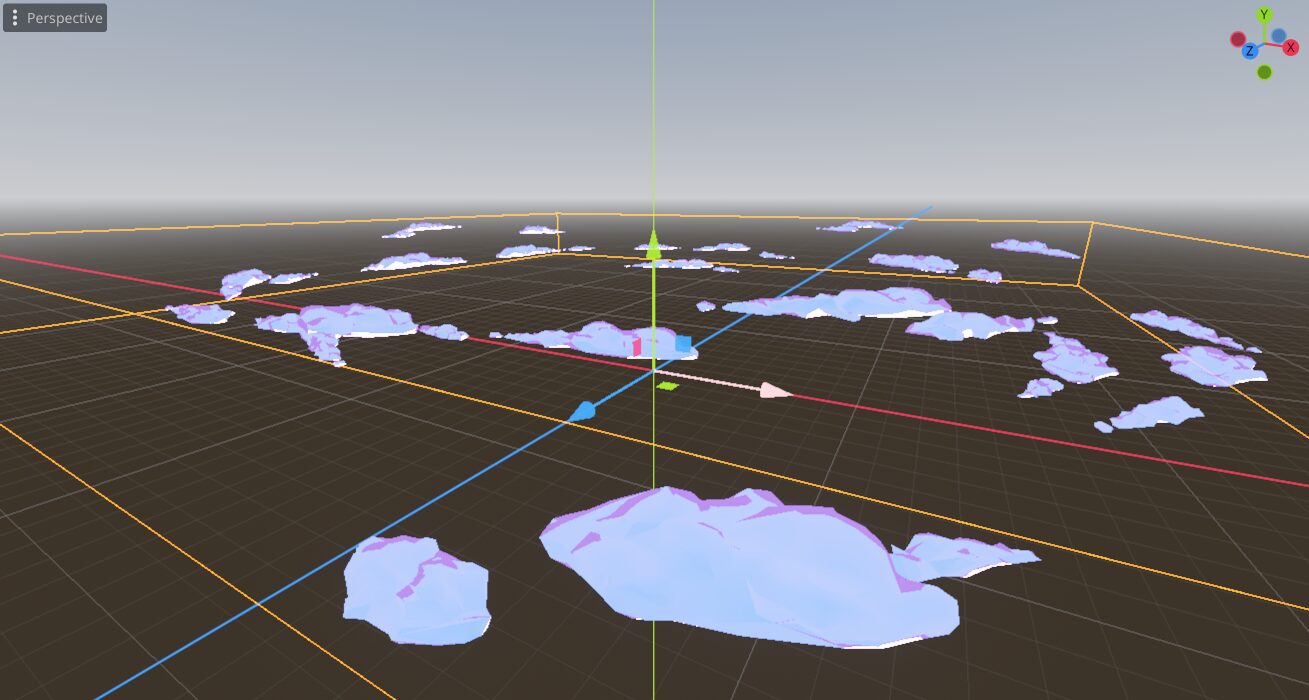
Synty Core Drop-in “Clouds” Shader

This shader replicates the cloud appearance of Synty cloud resources.
Shader code
/******************************************************************
Clouds = Synty models cloud shader for Godot.
(C) Copyright 2025 - Giancarlo Niccolai
Published under MIT licence.

# Overview

This shader replicates the cloud appearance of Synty cloud resources,
with two major limitations.

1. Godot rendering pipeline doesn't offer scene main lighting vectors;
   they can be retriecved by the script and set as shader variables.
2. Godot handles Fog differently; the fog passage in the Unity shader
   to dither distant clouds behind it is not necessary, so all the fog
   settings are removed.

## Global shader variables

This shader uses the following global variables that a script should set by
analysing the scene or explicitly declaring the charactersitics of the
environment; names should be self-explanaotry.

- vec3 MainLightDirection (added to local light_direction_override);
- vec4 SkyColor (can be overridden by top_color);
- vec4 EquatorColor (can be overridden by base_color or scattering_color in scattering computations);
- vec4 GroundColor (can be overridden by fresnel_color);

The script uses an override system: setting use_environment_override will
cause the shader to ignore the global variables. If you don't plan to use them,
feel free to reove them from the script -- they are all fetched at the begin
of the fragment() function.

NOTE: The overrides are copied from the Unity shader to maintain the behavior as close as possible.

*/

shader_type spatial;
render_mode  unshaded;

group_uniforms Color;
uniform vec4 top_color: source_color;
uniform vec4 base_color: source_color;
uniform bool use_environment_override;

group_uniforms Lighting;
uniform vec3 light_direction_override = vec3(0.5, -0.5, 0.0);
uniform float light_intensity;
uniform bool enable_fresnel;
uniform float fresnel_power;
uniform vec4 fresnel_color: source_color;

group_uniforms Lighting.Effects;
uniform bool enable_fog;
uniform float fog_density: hint_range(0.0, 1.0) = 0.4;
uniform bool enable_scattering;
uniform float scattering_multiplier;
uniform float scattering_edge_dist: hint_range(0.0, 1.0) = 0.4;
uniform vec4 scattering_color: source_color;

group_uniforms Vertex;
uniform float cloud_speed = 1.0;
uniform float cloud_strength = 0.2;

// This will be filled by the scritpt main light, eventually.
global uniform vec3 MainLightDirection;
global uniform vec4 SkyColor: source_color;
global uniform vec4 EquatorColor: source_color;
global uniform vec4 GroundColor: source_color;


float fresnel_effect(vec3 normal_ws, vec3 view_dir_ws, float power) {
    return pow(1.0 - clamp(dot(normalize(normal_ws), normalize(view_dir_ws)), 0.0, 1.0), power);
}


void vertex() {
	float displacement = cloud_strength * (sin( TIME * cloud_speed + VERTEX.x + VERTEX.z ));
	VERTEX += vec3(0.0, displacement, 0.0);
}


void fragment() {
	// World or override colors.
	// Feel free to remove the world colors if you don't need them.
	// NOTE: optimization will turn this into just one check.
	vec4 sky_color = use_environment_override ? top_color : SkyColor;
	vec4 horizon_color = use_environment_override ? base_color : EquatorColor;
	vec4 ground_color = use_environment_override ? fresnel_color : GroundColor;
	vec4 equator_scattering_color = use_environment_override ? scattering_color : EquatorColor;
	vec3 light_direction = use_environment_override ? light_direction_override :  MainLightDirection + light_direction_override;

	vec3 world_normal = (INV_VIEW_MATRIX * vec4(NORMAL, 0.0)).xyz;
	vec3 world_view = normalize(INV_VIEW_MATRIX * vec4(VIEW, 0.0)).xyz;

	float light_step = step( -light_intensity, dot(-( light_direction), world_normal));
	vec4 sky_mix_color = mix(sky_color, horizon_color, light_step) *3.0;
	if (enable_fresnel) {
		float fresnel = step(1.0 - fresnel_power, fresnel_effect(world_normal, world_view, 1.0));
	 	sky_mix_color = mix(sky_mix_color, ground_color, fresnel * light_step);
	}

	if(enable_scattering) {
		float fresnel = fresnel_effect(world_normal, world_view, scattering_edge_dist);
		vec3 scattered_light = fresnel * light_direction * scattering_multiplier;
		sky_mix_color = vec4(mix(sky_mix_color.xyz, equator_scattering_color.xyz, scattered_light), 1.0);
	}

	ALBEDO = sky_mix_color.xyz;
	ROUGHNESS = 0.0;
}
Live Preview


Where do I put this shader? MeshInstance? ParticleEffect?
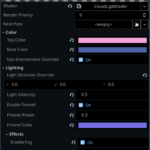
Usually, you want to create a material of type “shader material”, then load this shader into it. Normally, you want to put it in the “surface override” material. If there is one already and you save over its name, all the other meshes using the same material (by name) will load it automatically, which is pretty convenient to load Synty packages.
Godot has 4 material slots: mesh, surface override, geometry.override and geometry.overlay.
Mesh is the one automatically imported from material properties of the source model. You may or may not have that, and it may be overwritten if your pipeline includes re-editing the mesh.
Geometry.override and overlay are meant to replace the whole material topology, doesn’t have sub-mesh setting and is mostly used for overlay effects as green/red flashing on heal/damage.
The best for you is probably the surface override slot or slots (there may be more than one if the model has multiple surface settings).
The surface override slot of WHAT? A mesh? A particle system?
The MeshInstance3D object in the tree.
The mesh instance has a slot for the mesh data, under which you have a “surface material” array — depending on how many surfaces have been declared and associated to different vertices in the 3D modeller — at least one.
These entries are set by the importer to match the material defined by the 3D modeller as closely as possible, replicating the settings for color, metallicity, roughness, alpha and UV channels, provided Godot knows how to read that mesh object file, and the material settings are not too different from the material model used by Godot. Usually, simple material settings in Blender are copied here quite decently.
Then, outside the Mesh data entry in the MeshInstance3D, there is a “Surface Material Override” array, one entry for each “surface material”, which is a different material you can associate with that MeshInstance3D. So you can have the same 3D model imported from a modeller, but apply different material to different instances. This is the default place you want to use to adapt the look-and-feel of an object to your game.
Under that, there is a section called “Geometry”, still in MeshInstance3D. The Geometry has two material entries: MaterialOverride and MaterialOverlay. The difference is that, if a MaterialOverride is defined, all entries of Surface Material and Surface Material Override are ignored, and that material is applied to all the geometry of the 3D object. That is useful for effects as i.e. placeholder objects, where a whole object is, say, rendered in a transparent blue or black to provide a 3D cursor where a real object (without the MaterialOverride) would be placed later.
Instead, a MaterialOverly is added ON TOP of the other materials, so that its alpha channel is a transparency that lets you see the original object materials; that’s useful for blinking effects i.e. for healing or hurt effect where a green/red matte is applied to a fully rendered object.
Hope this helps.